Posts

Use ZAP tool to intercept HTTP Traffic
Image
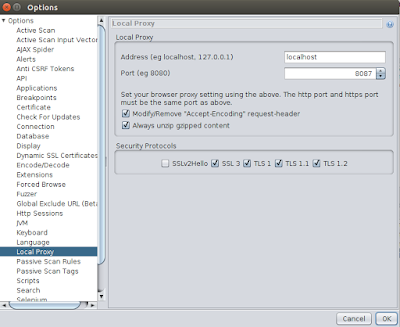
ZAP Tool Zed Attack Proxy is one of the most popular security tool that used to find security vulnerabilities in applications. This blog discuss how we can use the ZAP tool to intercept and modify the HTTP and HTTPS traffic. Intercepting the traffic using the ZAP tool Before we start, lets download and install the ZAP Tool. 1) Start the ZAP tool using / zap.sh 2) Configure local proxy settings  To configure the Local Proxy settings in the ZAP tool go to Tools -> Options -> Local Proxy and provide the port to listen. 3) Configure the browser  Now open your preferred browser and set up the proxy to listen to above configured port. For example: If you are using FireFox browser browser proxy can be configured by navigating to "Edit -> Preferences -> Advanced -> Setting -> Manual Proxy Configuration" and providing the same port configured in the ZAP proxy 4) Recording the scenario Open the website that you want to intercept usi...
Docker makes your life easy !!!

Most of the time we have come across situations to set up a cluster for WSO2 products. With in a product QA cycle it is a very common thing. But as you all know it consumes considerable amount of time to set up the cluster and troubleshoot. Now, with the use of dockers we can set up a cluster within few seconds and it makes your life easy :) So let me give a basic knowledge on what is "docker" What is Docker In most simplest terms, docker is a platform to containerize software images. Install Docker  : https://docs.docker.com/engine/installation/linux/ubuntulinux/ What is Docker Compose Docker compose is used to compose several applications and run those using one single command to initialize in multiple containers. Install Docker Compose : https://docs.docker.com/compose/install/ For some of the wso2 products there are docker compose images already exists in a private repository. Main purpose of this blog is to highlight some of the useful docker comm...

Configuring an email notification to define user password

Image
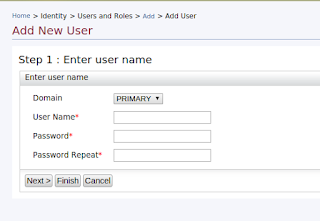
This blog will discuss how to configure an auto generate email to define the password when creating a user via management console. In WSO2 Identity Server there is an inbuilt feature called 'Ask Password' to fulfill this requirement. Lets look at how to implement this in other wso2 products. ' Ask Password ' is a feature that comes with wso2 Identity Server. The purpose of this feature is to allow the users to decide there own password rather than defining a password by the server administration and allow the user to change the defined password. So let me move on to the purpose of writing this blog. While I was working with WSO2 API Manager, I got a requirement that the APIM administrator wants to create users via APIM management console, but the administrator wants to allow the users to define a password by the user itself. This requirement can be fulfilled using the ' Ask Password ' feature available in wso2 Identity Server. Scenario APIM Administrat...

Encrypting sensitive information in configuration files

Encrypting information  I thought to start from basics before dig in to the target topic. So lets look at what is "encrypting". Encrypting information is converting information in to another format, which is hard to understood. As we all know encrypting information is really useful to secure sensitive data. In wso2 products, there is an inbuilt 'Secure Vault' implementation to encrypt plain text information in the configuration files to provide more security. In this post I will not discuss about the secure vault implementation in details. You can refer ' secure vault implementation ' to get more insight about it. In wso2 products based on carbon 4.4.0 or later visions, 'Ciper Tool' feature is installed by default, therefore you can easily use that to encrypt sensitive information in the configuration file.  Lets move on to the main purpose of this blog. We already know that we can use ciper tool encrypt the information in configuration ...

Information filtering using grep commands

While I was working on monitoring the long running test issues, I thought it would be useful to write a post on the usage of 'grep' commands in Linux. In this article I will be discussing few real examples of using "grep" commands and how to execute grep commands as a shell script. Search for a given string  This command is use to search for specific string in a given file. grep "<Search String>" <File Name> Ex: In the below example, it will search for the string "HazelcastException" within wso2carbon.log file. grep "HazelcastException" wso2carbon.log Search for a given string and write the results to a text file This command is use to search for a given string and write the search results to a text file. grep "<Search String>" <File Name> > <Text File Name> Ex: In the below example, it will search for the string "HazelcastException" within wso2carbon.log file and wri...

Allowing empty charachters using regular expression

Image
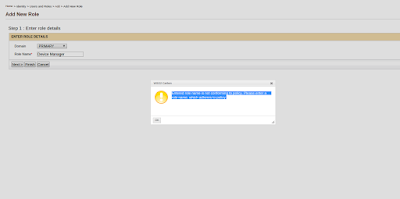
This post will guide you to configure regular expression, to allow empty characters (spaces) for properties like user name and role name. Validations for User Name, Role Name and Password are done using the regular expressions provided in <Product_Home>/repository/conf/user-mgt.xml file. I will be taking EMM product as the example. By default empty characters are not allowed for role names in management console. If you enter a role with empty character (ex: Device Manager) you will get a message as in below image.  Follow below steps to allow empty characters for role name. 1. Go to <EMM_HOME>/repository/conf/user-mgt.xml file and open the file. Then change <RolenameJavaRegEx> property and <RolenameJavaScriptRegEx> proerty as given below Property name="RolenameJavaRegEx">[a-zA-Z0-9\s._-|//]{3,30}$</Property> Property name="RolenameJavaScriptRegEx">^\w+( \w+)*$</Property> Note - <RolenameJ...

Monitoring Apache Storm using JConsole

Image
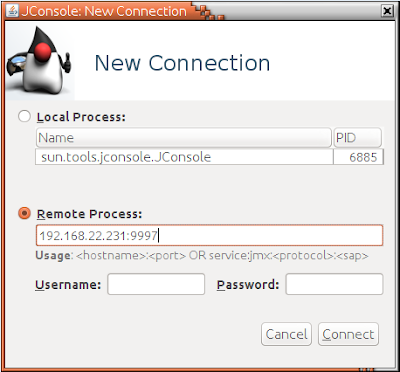
When you setup a storm cluster in a production environment it is important to monitor performance and resource usage of storm components to make sure that your cluster is working smoothly without issues. This post will guide you to enable JMX and monitor storm components using JConsole. Mainly there are two nodes to monitor in a storm cluster Nimbus Node Supervisor Node Configure Nimbus Node  Open storm.yaml file located at Nimbus_HOME>/conf/ directory and add below configurations. Here I will be enabling JMX at port 9997. You can specify a preferred port here. Add the host name of nimbus node nimbus.childopts: "-Xmx1024m -Dcom.sun.management.jxmremote -Dcom.sun.management.jmxremote.local.only=false -Dcom.sun.management.jmxremote.authenticate=false -Dcom.sun.management.jmxremote.ssl=false -Dcom.sun.management.jmxremote.port=9997 -Djava.rmi.server.hostname=192.168.22.231" Start storm nimbus using below command ./storm nimbus Configure Supervisor...